Product Quantity Calculation
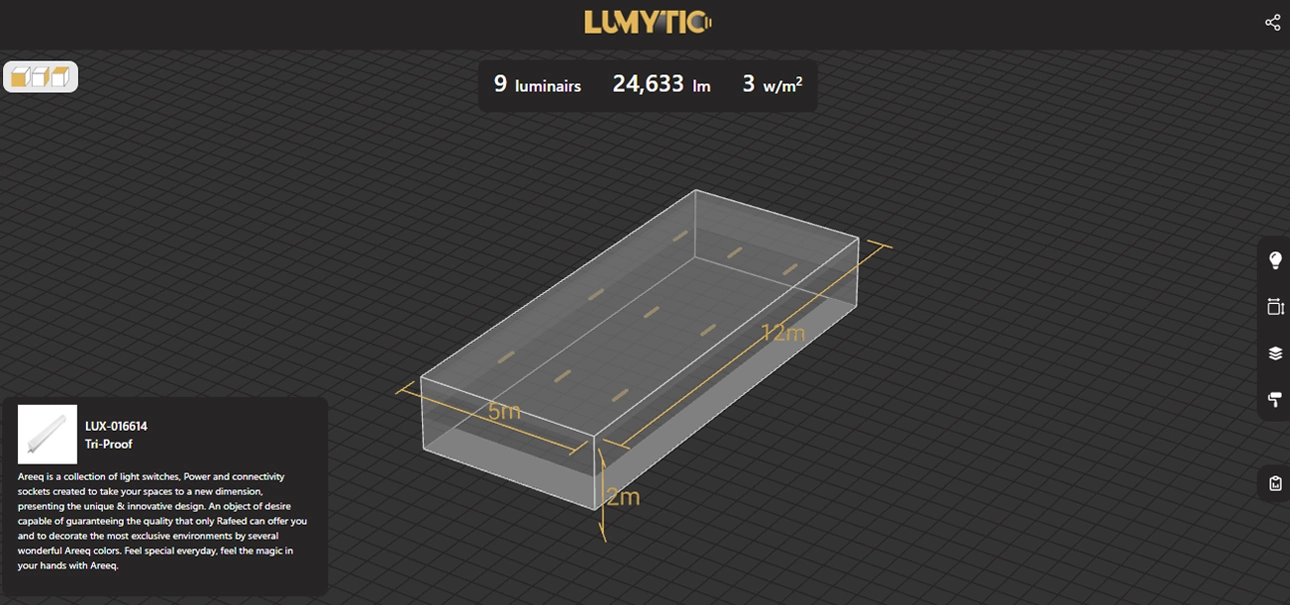
This tool helps you calculate how many products can fit in a room based on the room size and other factors that affect the product count. It also assists in identifying the most suitable devices for the space and estimating related expenses easily.
Choose Product
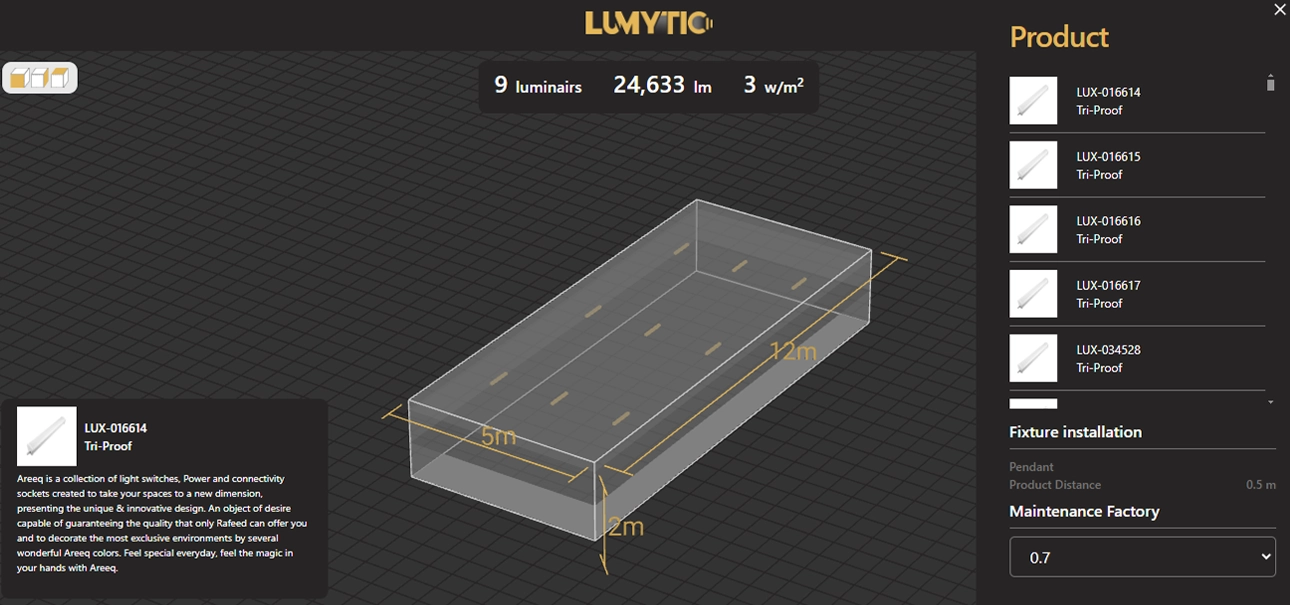
The first step is to select the product you want to simulate. Once selected, the Lux Calculator automatically adjusts details such as mounting height, installation method, and maintenance factor based on the chosen product. This ensures that each simulation is tailored, providing a realistic view of how the luminaire will perform in your specific project or personal space.
- From the Lux calculation main page, click on the product icon.
- Choose the product you want to simulate.
- The selected product will appear in the 3D simulation as a visual representation of its actual shape
Setup Room Size
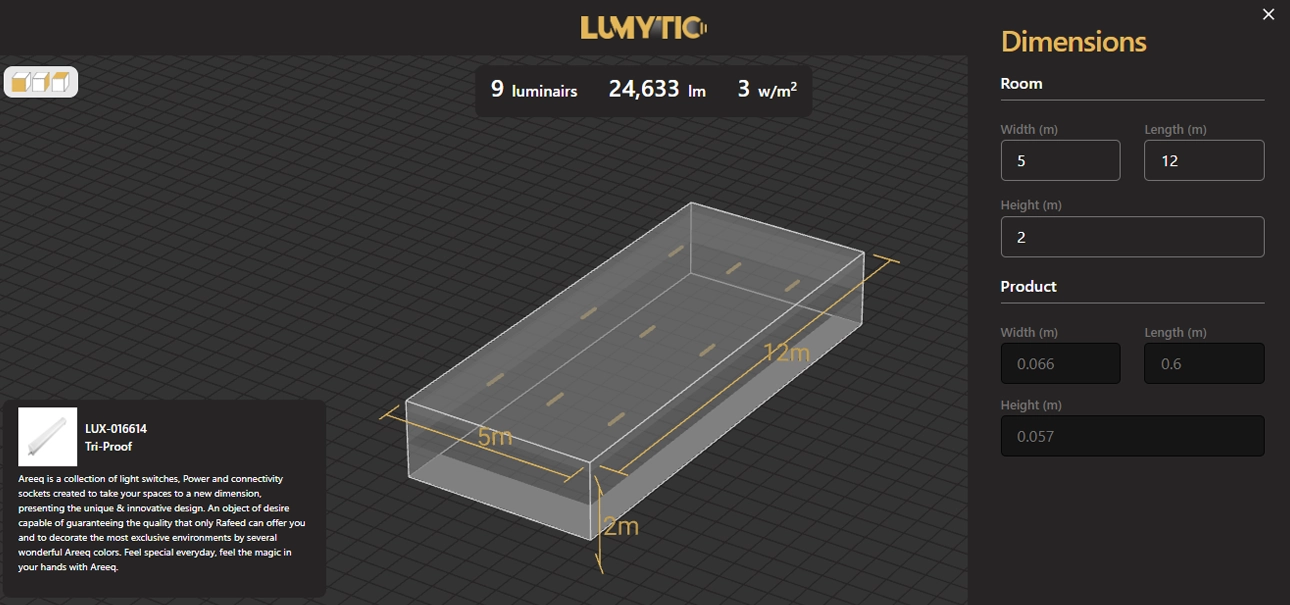
The Dimensions interface allows you to enter the measurements of a room in order to calculate how many products are needed to cover or fit within the given room.
- From the Lux calculation main page, click on the dimension icon.
- Enter the room dimension such as width, length and height.
- The room size in the 3D simulation will update automatically when you change the dimensions.
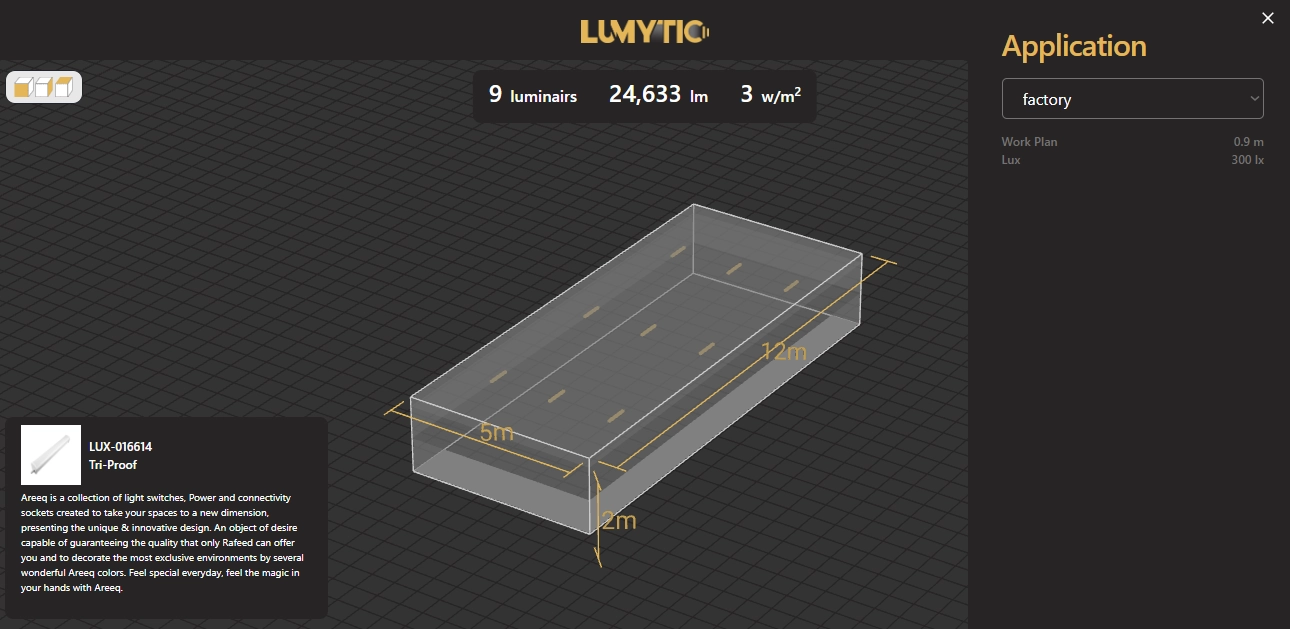
Define Room Application
The Room Application setting adjusts the number of luminaires based on the specific lighting requirements of the space. For example, a gym may require fewer fixtures to achieve sufficient lighting, while a jewelry store, needing focused, high-intensity lighting requires more fixtures to meet its demands.
- From the Lux calculation main page, click on the application icon.
- Choose the suitable application type for your space (e.g., gym, office, retail, etc.).
- The system will automatically recalculate the product count in the 3D simulation based on the updated application settings.
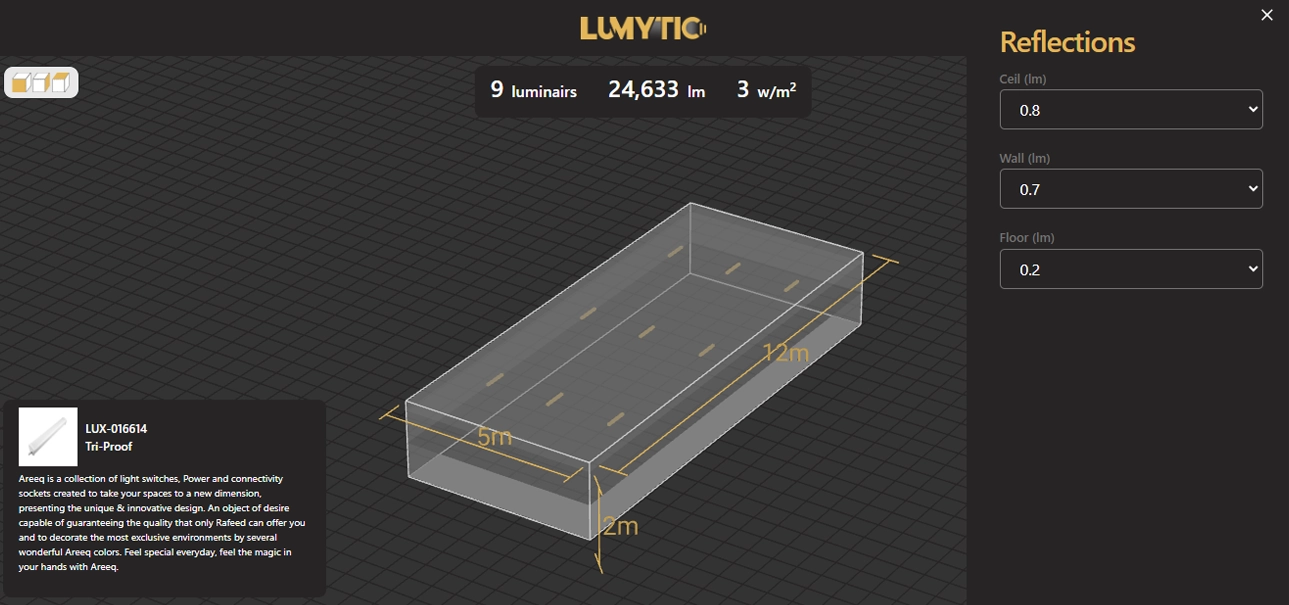
Setup Room Reflections
Reflections refer to the amount of light that bounces off various surfaces in a room, such as the ceiling, walls, and floor based on their material and finish. These values, typically measured as reflection percentages, influence how much lighting is needed in the space.
- From the Lux calculation main page, click on the reflection icon.
- Enter the appropriate reflection values for the ceiling, walls, and floor based on their surface materials
- The system will automatically recalculate the product count in the 3D simulation based on the updated reflection settings.
Print Calculation Result
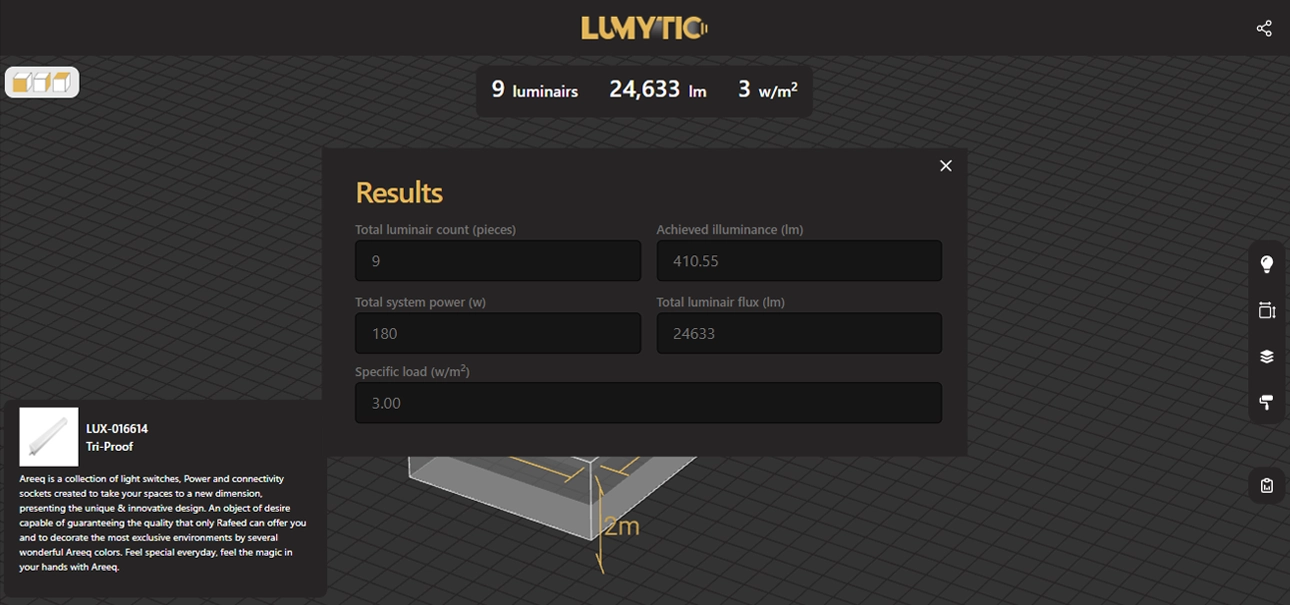
Once all entries are completed, you can easily access and print the calculation results, including key details from the 3D simulation.
- From the Lux calculation main page, click on the result icon.
- A pop-up window will appear, displaying the following details
- Total number of luminaires
- Achieved illuminance
- Total system power
- Total luminaire flux
- Specific load (power density)
- From this window, you can choose to print the results.
Share Calculation Result
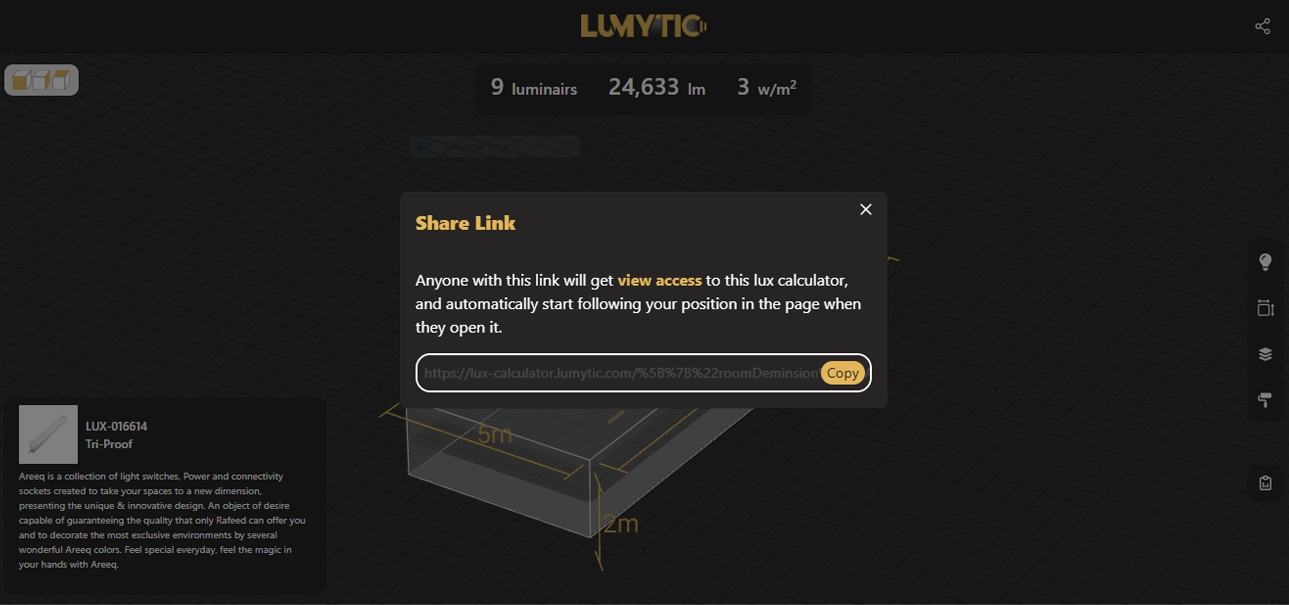
This feature allows you to easily share your simulation results with others using a unique URL. It’s ideal for collaborating with teammates, clients, or stakeholders without needing them to log in. The shared link includes full access to calculation data and 3D visualization.
- From the Lux calculation main page, click on the share icon.
- A pop-up window will appear containing a URL that you can copy and share with anyone to allow them to view your results.