Dashboard Control
Lumytic lets administrators assign dashboards to users based on their department. Each department can be linked to one or more dashboards, so all users in that department automatically get access to the tools and insights they need. The system provides dedicated dashboards for each module, such as Product Development, Packing, Expenses, Purchasing, Projects, Sales, and Shipping, to help users monitor and analyze application usage effectively.
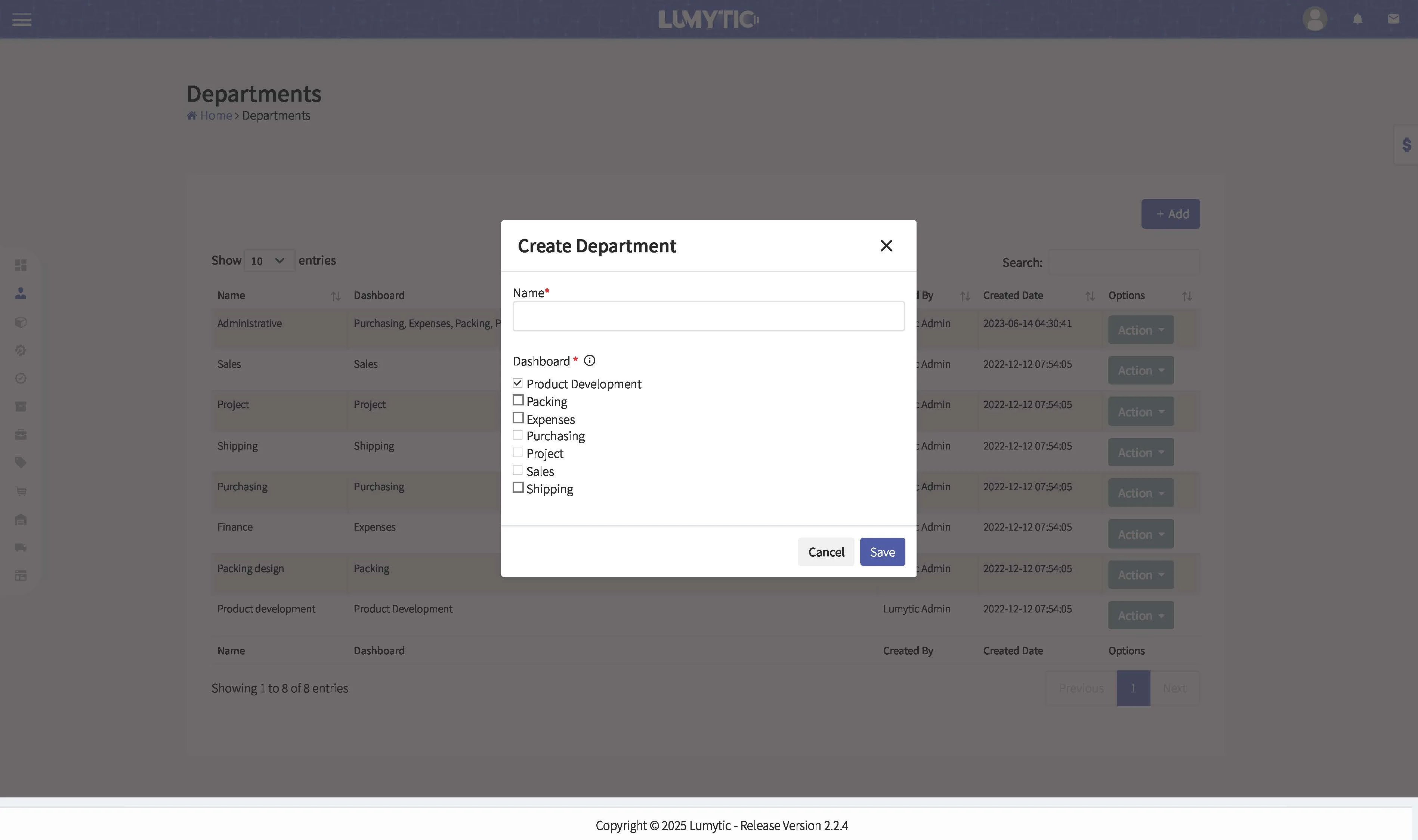
Create department
Use this feature to create a custom department when specialized access or configurations are required. It’s ideal for setting up departments with unique dashboard preview permissions or specific roles within your organization.
- From Department page, click Add.
- Enter the name of the department
- Select a dashboard that best suits the needs of your business, then click save.
Edit department
Use this feature to update the details of an existing department. You can modify the department name, adjust assigned dashboards or change configurations to reflect organizational changes or evolving needs.
- From the Department page, select the department you want to update. Then, click Edit from the Actions button.
- Make the necessary updates to the department. You can also assign a dashboard to all users in the selected department.
- Once you have finished updating, click Save to apply the changes.
Assign Dashboards to users by department
Lumytic lets administrators assign dashboards to users based on their department. Each department can be linked to one or more dashboards, so all users in that department automatically get access to the tools and insights they need
- From the Department page, select the department you want to update, or click Add to create a new one.
- Select a dashboard that best suits the needs of your business
- Click Save to apply the changes. All users assigned to this department will now automatically have access to the selected dashboards.
- Go to the Users module, open the user profile, and set their department to the one you just configured