Bill of Materials (BOM)
Build your product structure with clarity using an intelligent Bill of Materials (BOM). Define all components, raw materials, and sub-assemblies in one centralized location. Easily create, edit, and manage BOMs to suit your production requirements, with built-in version control to track changes and updates over time. Whether handling simple or complex assemblies, BOM management ensures your production stays organized, flexible, and fully traceable from start to finish.
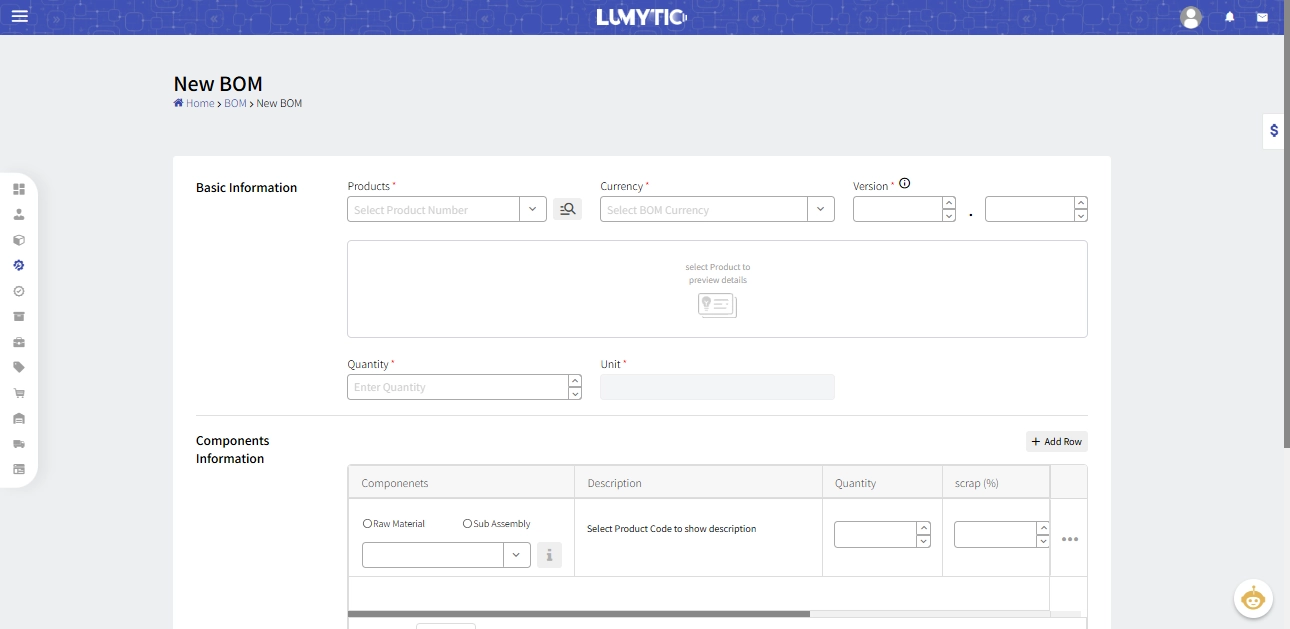
Create BOM
Create a Bill of Materials (BOM) to clearly define and centralize all components, raw materials, and sub-assemblies, ensuring a flexible, traceable solution tailored to production needs.
- From BOM page, click Add.
- Enter the basic information of BOM:
- Product: must use the “CKD” manufacturing technique and have a status of “Continued”
- Currency, Version, Quantity and Unit
- In the Components Information, add the components of the BOM (raw materials or sub-assemblies). Specify the required quantity and the expected scrap percentage.
- The system will display costing values in the Costing section.
- Review all input details, then click save.
To find products easily, you can use the advanced search feature, which helps filter and select any product in the system
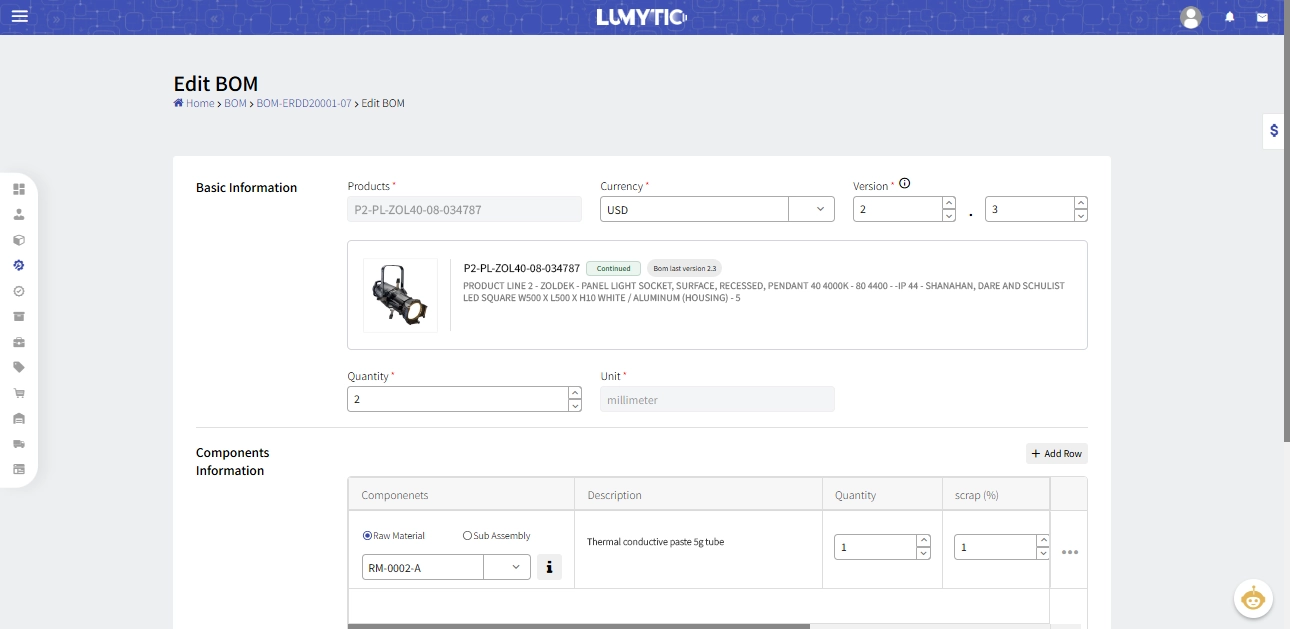
Edit BOM
Editing a BOM updates the parts and quantities to keep the production process accurate and aligned with current requirements
- From the BOM detail page, click edit.
- Make the necessary updates then click save
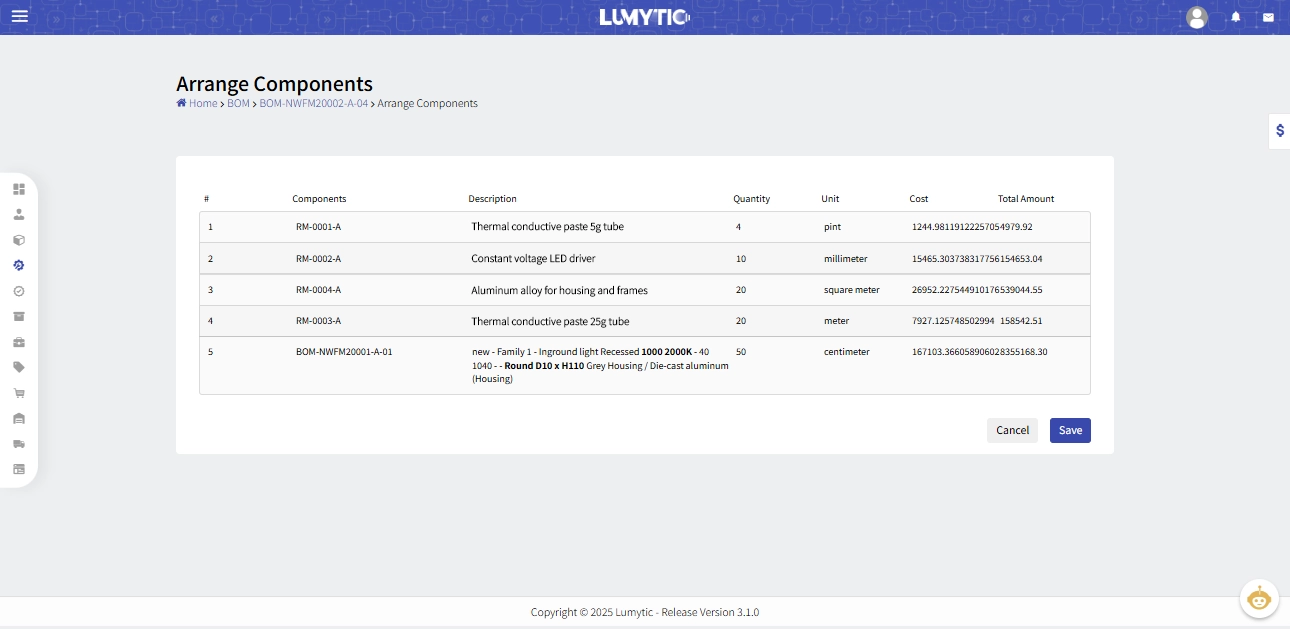
Arrange BOM Components
Organize components of BOM to ensure a flexible, customizable structure tailored to your needs
- From the BOM detail page, click the Arrange Components button
- Use drag-and-drop to arrange the components in your preferred order.
- Once the components are arranged, click Save to apply the changes.
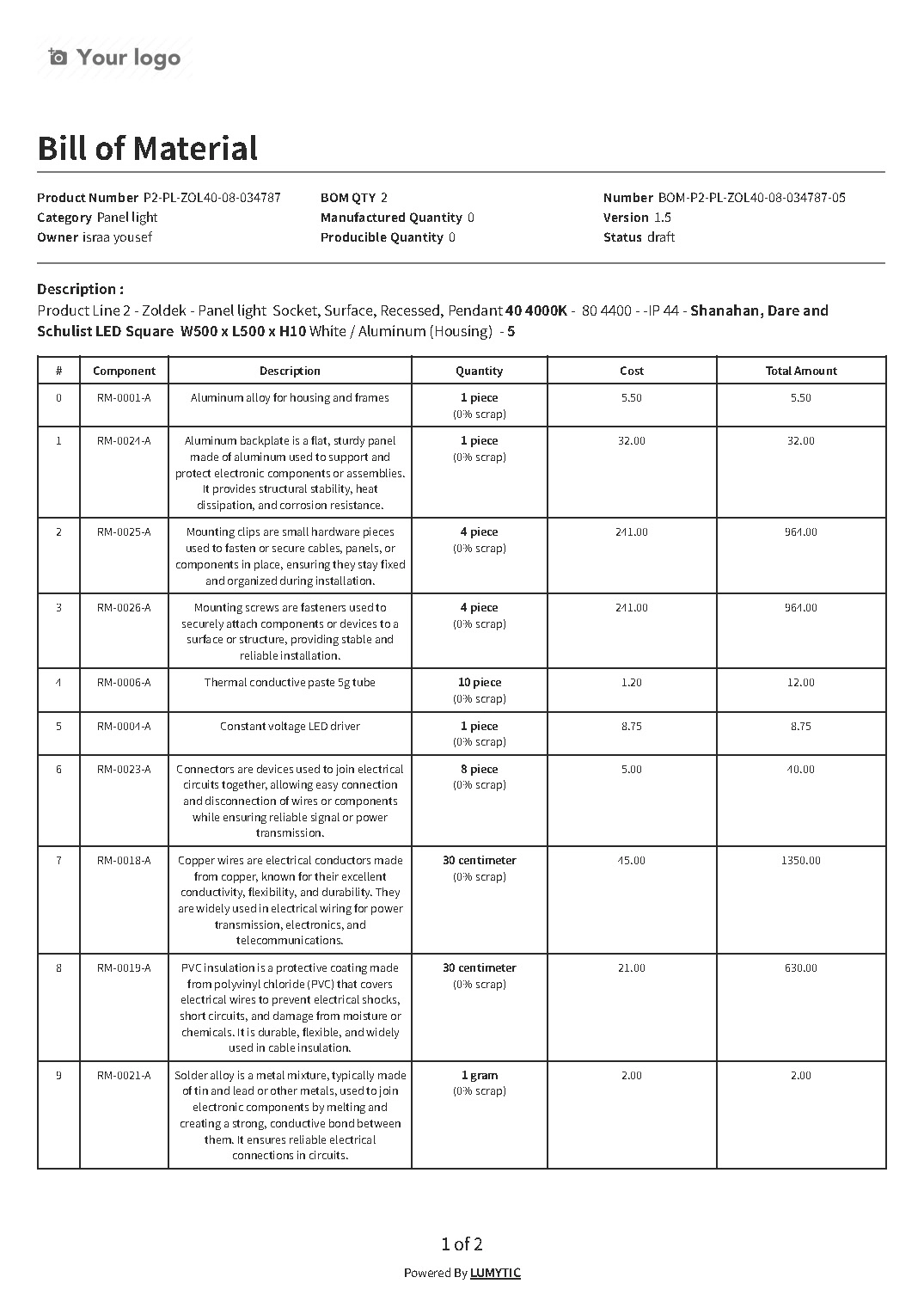
Print BOM
Generate a printable version of the BOM to provide a physical or digital reference of all components and materials needed for production.
- From BOM detail page click print to export professional BOM documents in one click
- The system will open the BOM file in a new window for viewing or downloading.
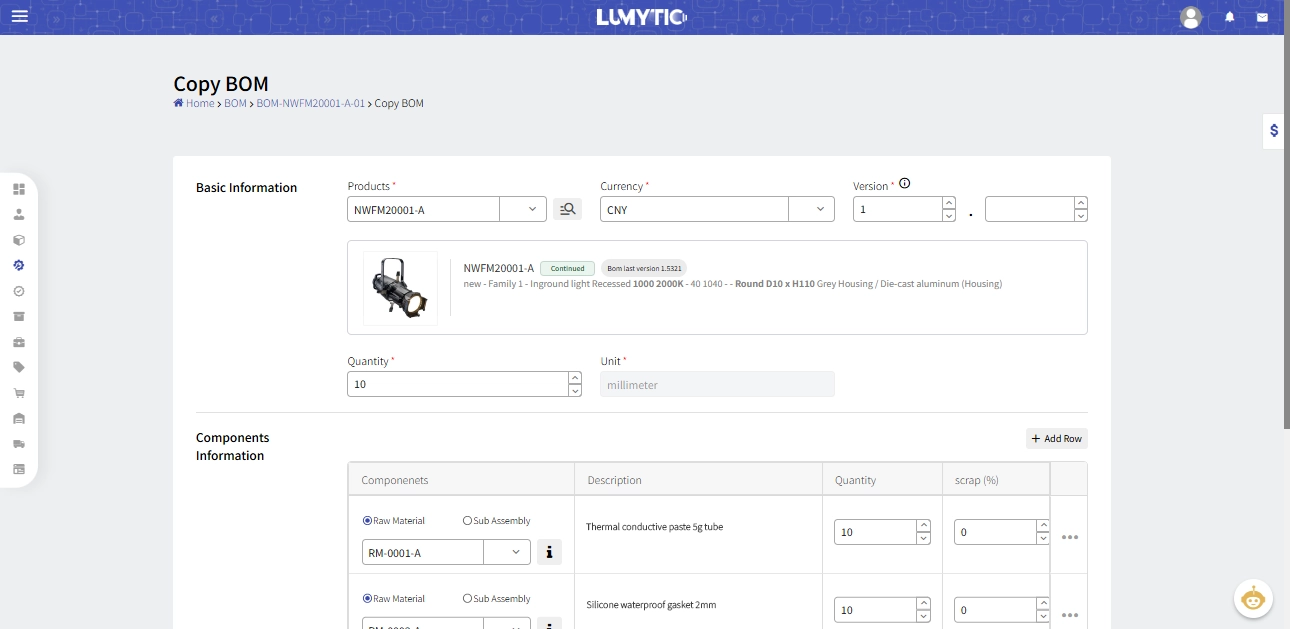
Create BOM Version
The system allows users to create and manage multiple versions of a Bill of Materials (BOM). This feature helps track the development and maintain the full history of an item. Lumytic enables you to manage and monitor all BOM versions effectively.
- From the BOM detail page, go to BOM version then click add
- The system opens a new BOM form pre-filled with data from the opened version. This makes it easier to update, but ensure that you change the version number.
- Make the necessary updates then click save.
Cost Synchronization
This action synchronizes the component costs with the product cost, ensuring that the product cost reflects the actual manufacturing cost.
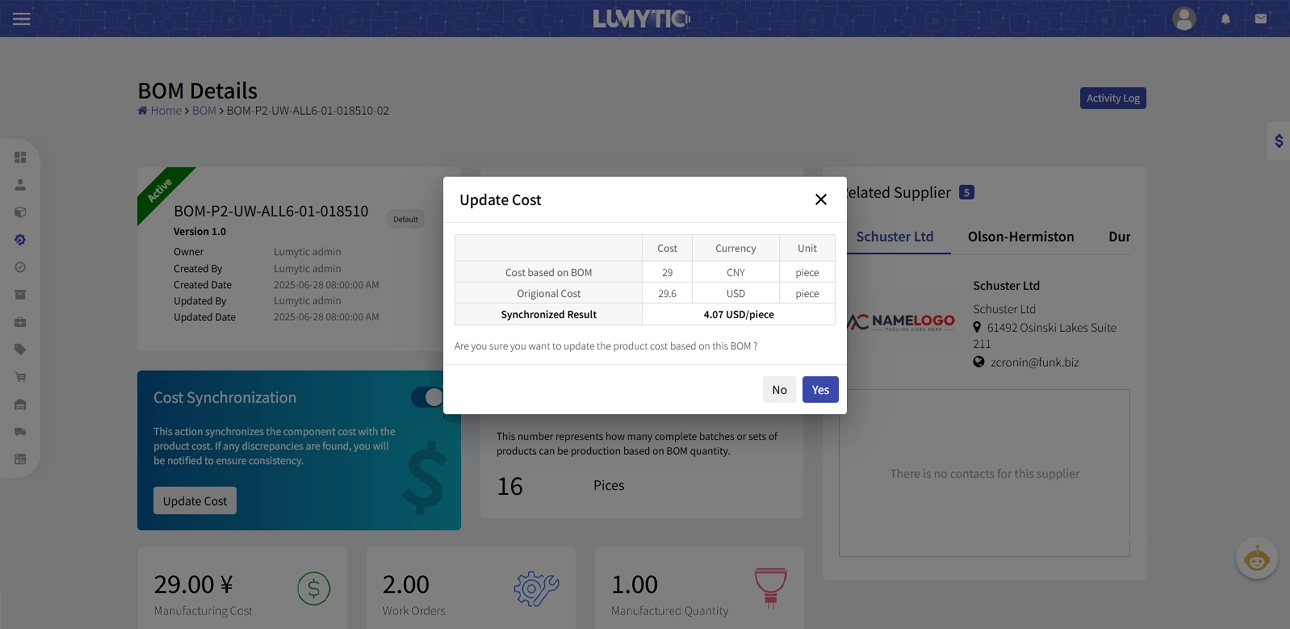
- From the BOM detail page, go to cost synchronization section then click update cost
- The system displays a confirmation message along with a costing table. This table shows:
- The BOM cost in its original currency.
- The product’s current cost.
- The synchronized result after converting the BOM cost into the product’s currency.
- Click yes to confirm and update the product cost.