Work Order
Streamline manufacturing operations with smart and flexible work orders by tracking production in one centralized place, reducing delays, improving coordination and keeping production running smoothly with improved efficiency across every stage of the workflow.
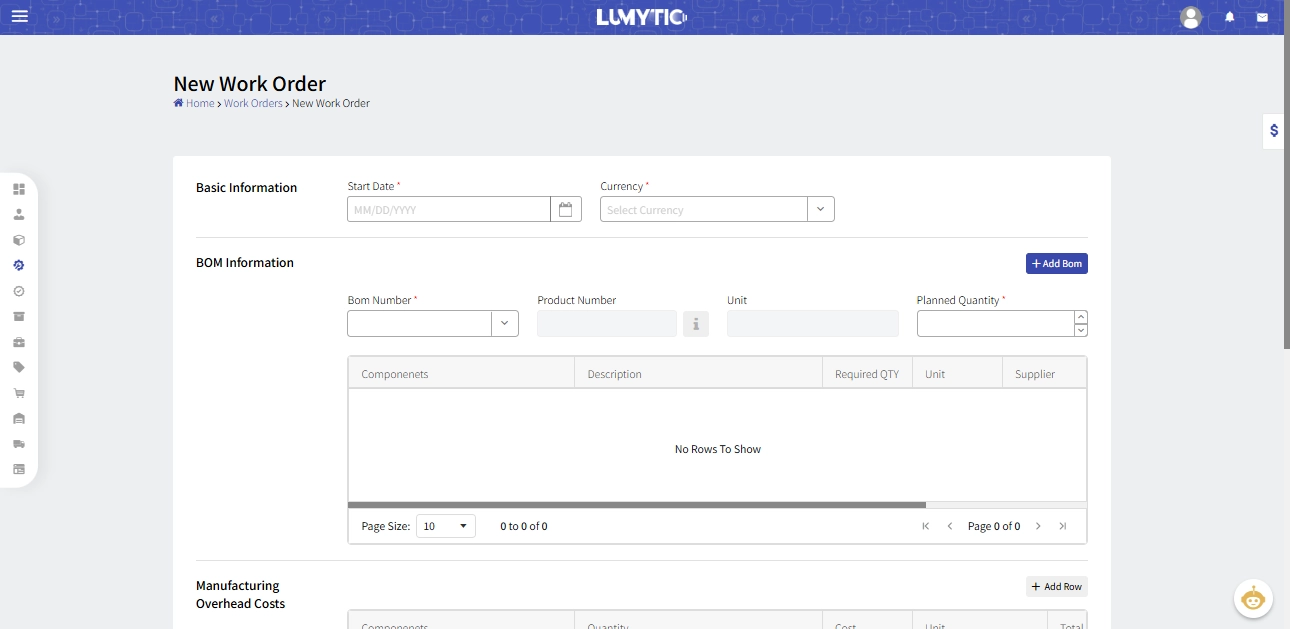
Create Work Order
Initiate a new work order to start a specific production task. a work order defines the product, planned quantity, and required resources for manufacturing.
- From the work order page, click Add.
- Enter the basic information, such as start date and currency
- In the BOM Information section, select the BOM number and specify the planned production quantity.
- In manufacturing overhead costs section, you can add special components or expenses used during the manufacturing process (e.g., electricity).
- In the additional raw material section, add any raw materials required for this work order that will be used during this work order’s production.
- Review all input details, then click save
You can include multiple BOMs in the same work order, allowing the production of multiple products under a single work order.
Edit Work Order
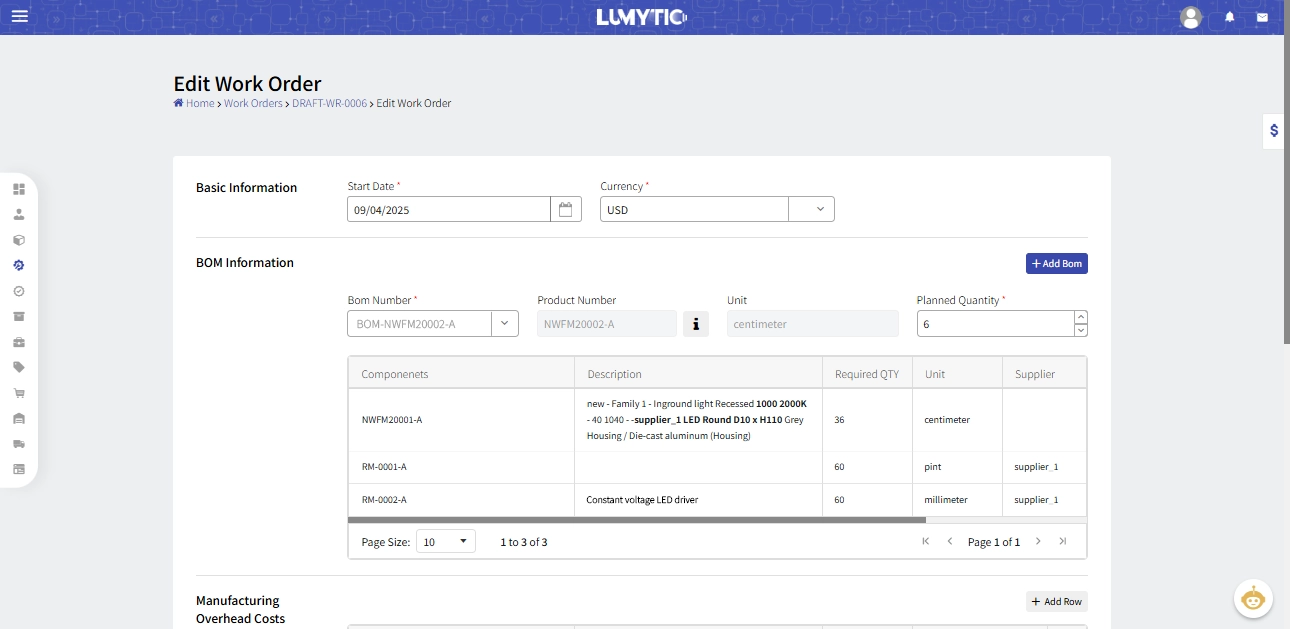
Update an existing work order to modify product details, quantities, resources, or other manufacturing information as needed.
- From the work order details page, click on edit
- Make the necessary updates then click save
Confirm Work Order
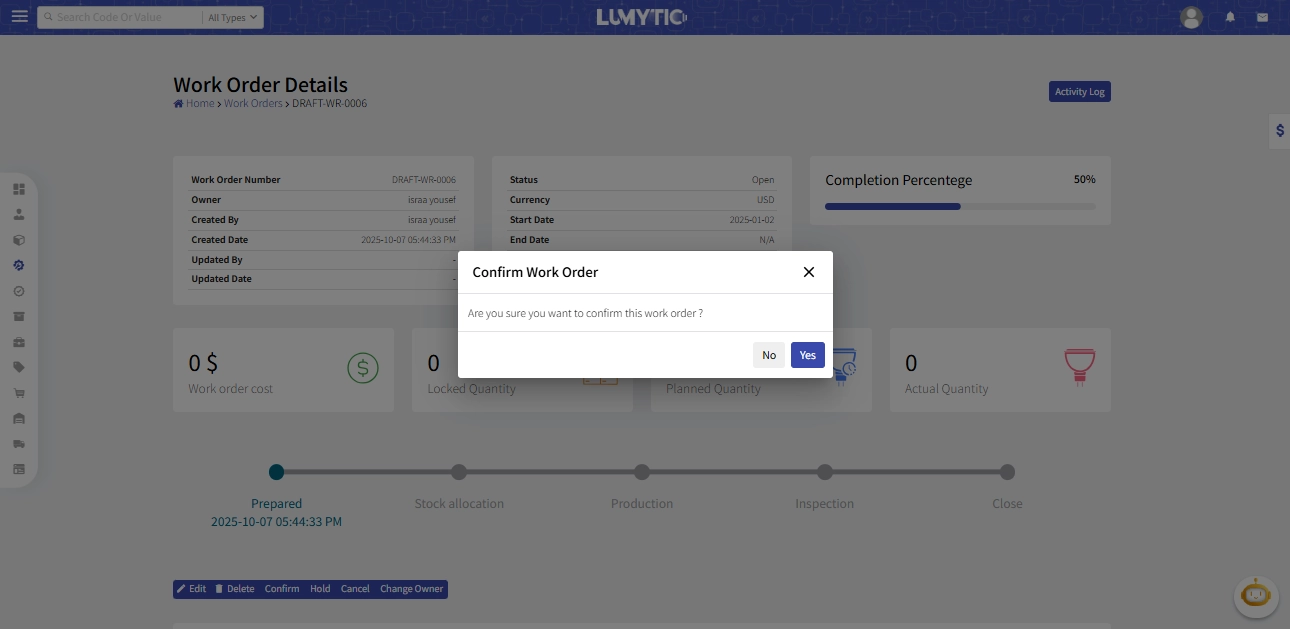
The confirmation action ensures that all necessary preparations and modifications are completed. Confirming a work order locks the BOM and prevents further changes before proceeding with production.
- From the work order details page, click confirm
- The system will display a confirmation message before proceeding with the action save.
Lock Component
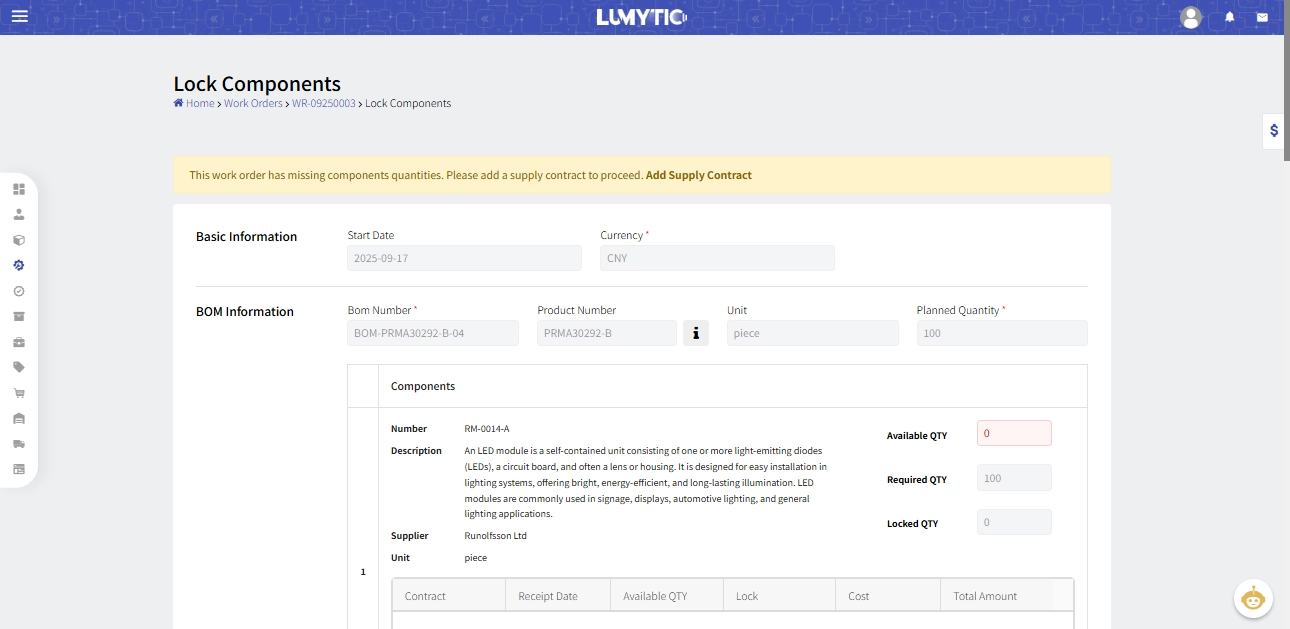
The stock allocation stage focuses on securing the raw materials required for a work order. Users reserve all necessary components from inventory and can place orders for any missing items, ensuring that production can proceed smoothly without delays.
- From the work order details page, click Lock components
- In the BOM information section, the system displays each component along with available stock and receipt details. This helps the user select the specific receipt from which to lock the component for the work order.
- Enter the lock quantity for the selected receipt(s).
- Review all entered details, then click save
Set Production Results
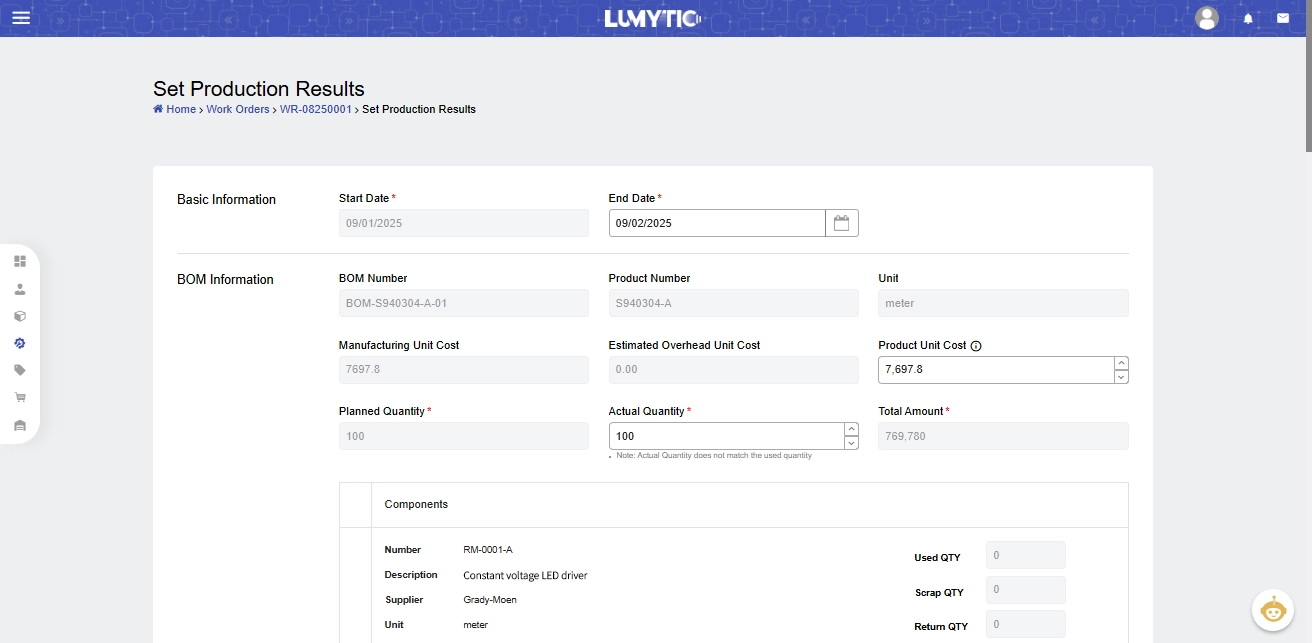
After completing the production process, you need to record and confirm the actual quantities produced, used, and scrapped. This ensures that all data for each work order is accurately reflected in the system.
- From the work order details page click on set production results
- In the basic information section, enter end production date.
- In the BOM information section
- Enter the actual produced quantity for this BOM.
- Enter the unit cost, which will be recorded in inventory.
- Review the locked quantities; verify if all quantities were used, scrapped, or need to be returned to inventory.
- In manufacturing overhead costs section, you can add special components or expenses used during the manufacturing process (e.g., electricity).
- In the additional raw material section, add any raw materials used in this work order that were used during production
- Review all entered details, then click saves
The user can open this page multiple times during the Production stage to update quantities and the produced product costs as needed
Confirm Production Result
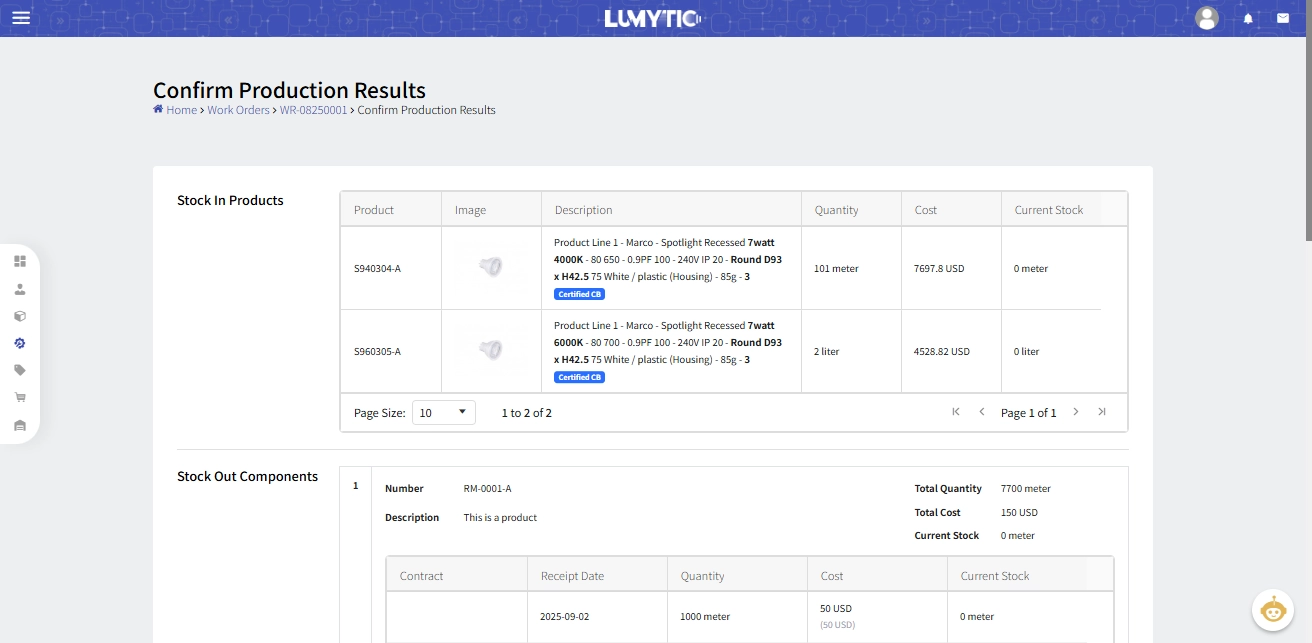
This action performs a final check of all production results before updating inventory. Once confirmed, the update cannot be undone and will affect the entire system.
- From the work order details page click on confirm production results.
- The system displays all production results in two sections:
- Stock In Products: showing the actual quantity of the finished product from the BOM along with its unit cost.
- Stock Out Components: showing all raw materials consumed in the work.
- Review all entered details, then click save
End Inspection
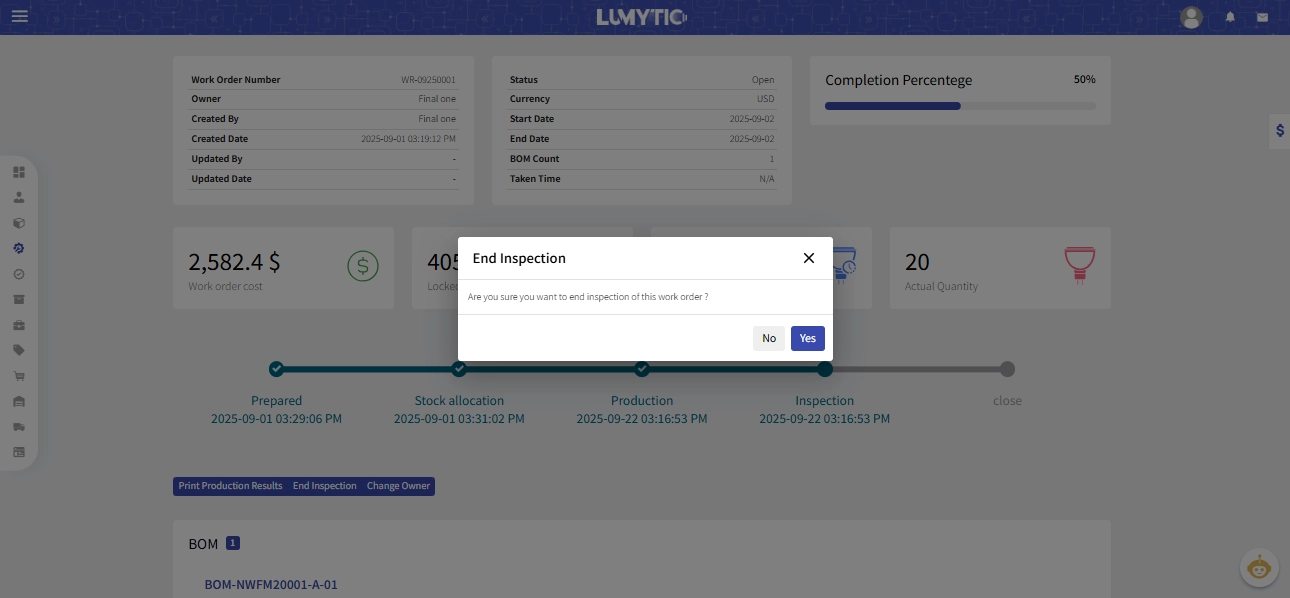
The End Inspection is the final step of the work order process. It completes the inspection and moves the work order into the closed stage. After production, inspect the finished products to ensure quality. Lumytic provides an The Inspection App to simplify this process.
The Inspection app is available on major stores:
app stores., google play., huawei store
- From the work order details page click end inspection.
- The system will display a confirmation message before proceeding with the action save.
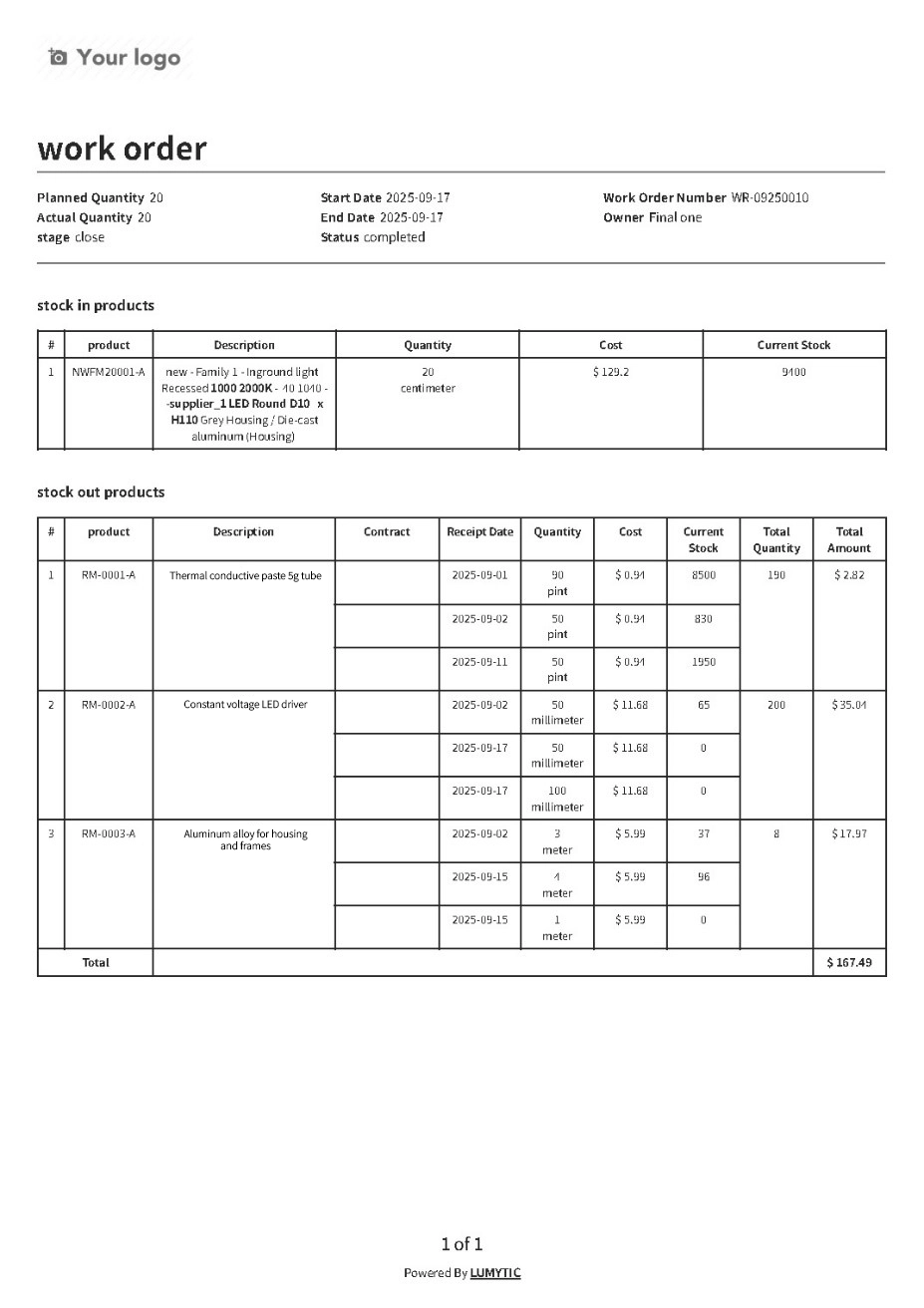
Print Work Order Production Result
The report and document is most important part in Lumytic system, that help your company to be look as professional company, that help to follow up and complete staff work.
- From the work order details page, click on print production result
- The system will open the work order file in a new window for viewing or downloading
Hold Work Order
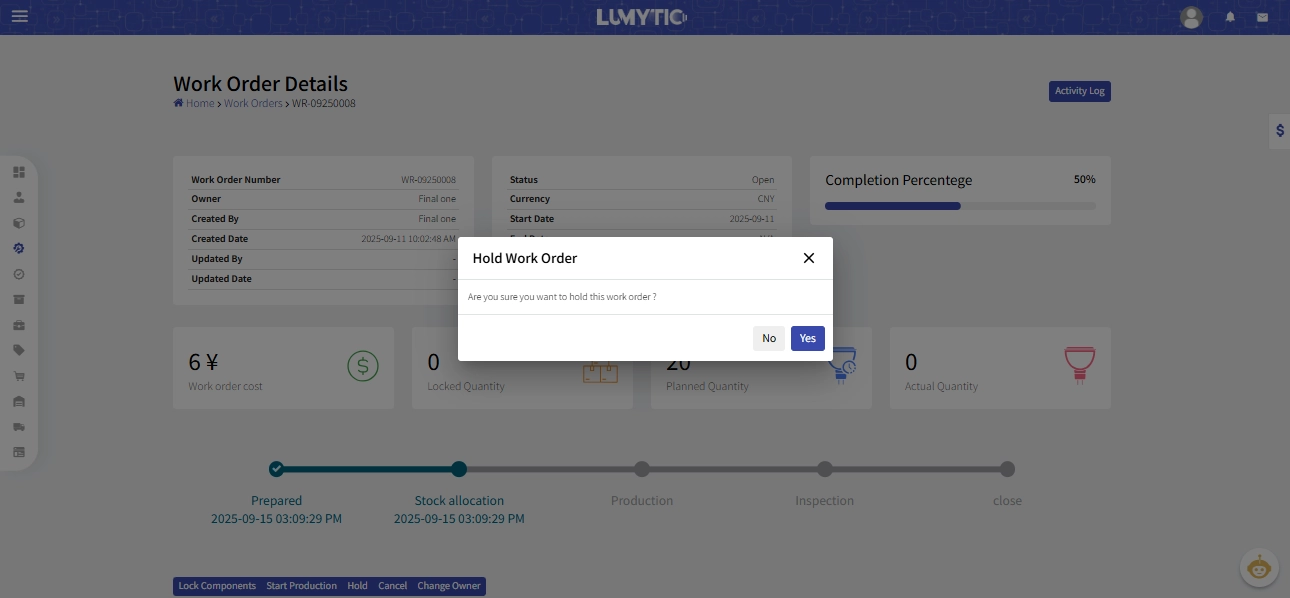
The Hold Work Order action allows you to temporarily pause or suspend a work order when needed. It can be applied if the work order is in the Prepared, Stock Allocation, or Production stage. Placing a work order on hold stops any further processing while keeping all data and allocations intact, allowing you to resume production later without affecting inventory or reports.
- From the work order details page, click Hold
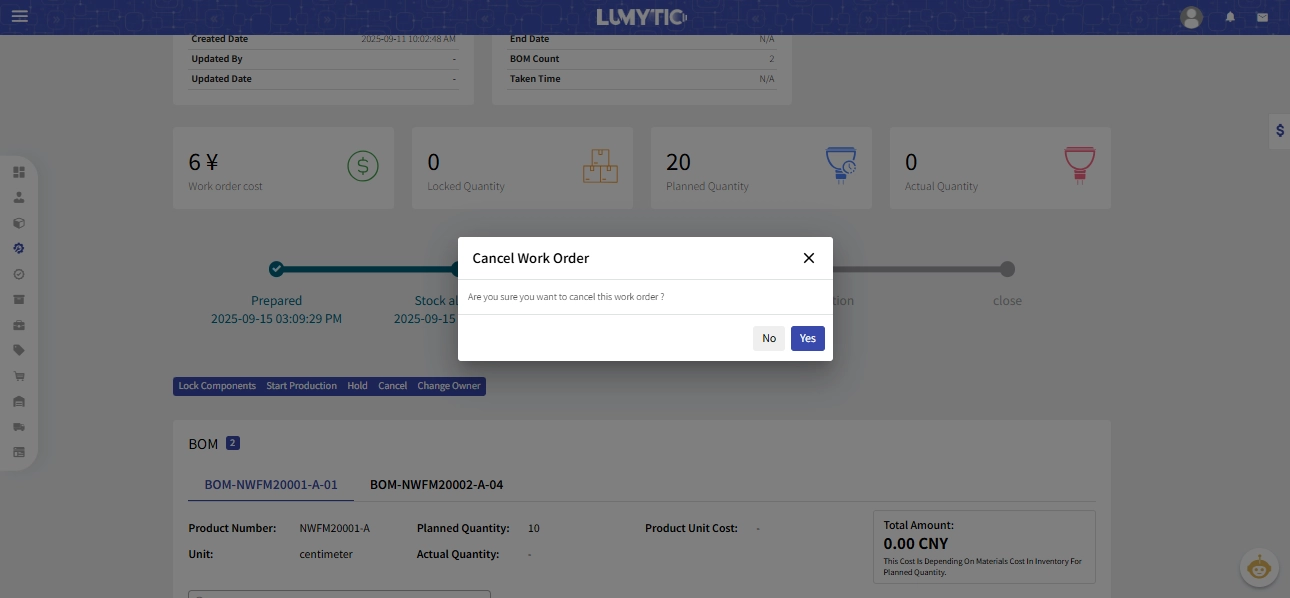
- The system will display a confirmation message before proceeding with the action save.
Cancel Work Order
The Cancel Work Order action allows you to terminate a work order that is no longer needed or created by mistake. It can only be performed when the work order is in the Prepared or Stock Allocation stage. Canceling a work order stops further processing and releases any reserved materials, ensuring it does not affect production or inventory records.
- From the work order details page, click on cancel
- The system will display a confirmation message before proceeding with the action save.