Customer
The Customer is a core record in the Sales app. It plays a vital role in enabling access to the Customer Portal and is essential for completing the full sales cycle, including quotations, orders, and invoicing.
Create Customer
Use this feature to manually add a new customer to the system by entering key details such as name, contact information, and company data. This is the first step in managing customer relationships and enabling the sales process, including quotations, orders, and invoicing.
- From customer page, click add.
- Fill in: Company Name, Website URL, Email Address, and Country.
- Click save to create the customer record.
Invite customer
Use this feature to invite a customer to access the Customer Portal. Inviting customers allows them to view quotations, track orders, communicate with your team, and manage their own account details directly through the portal.
- From Customer page, click on invite customer button.
- Enter the customer's name and email address.
- The system will send an email to the customer containing a registration link to access the Customer Portal.
Customer Signup via Portal
Allow new customers to register themselves directly through the Customer Portal. This self-service signup streamlines onboarding by enabling customers to provide their information, create an account, and gain access to relevant sales and support features without manual intervention.
- From Lumytic customer portal login page, click sign up button to start the registration process.
- Enter Basic Company Information
- Fill in: Company Name, Website URL, Country, Contact Person, Email Address, and Physical Address.
- Fill in: the Shipping and Billing details: First and Last Name, Commercial, Foundation Name, Email Address, Country, Commercial Registration Number and Upload it's the required file.
- Once all fields are completed, click Send to submit your registration request.
- The system sends a registration request to the admin for review. The admin can then approve or reject the request before a customer account is created.
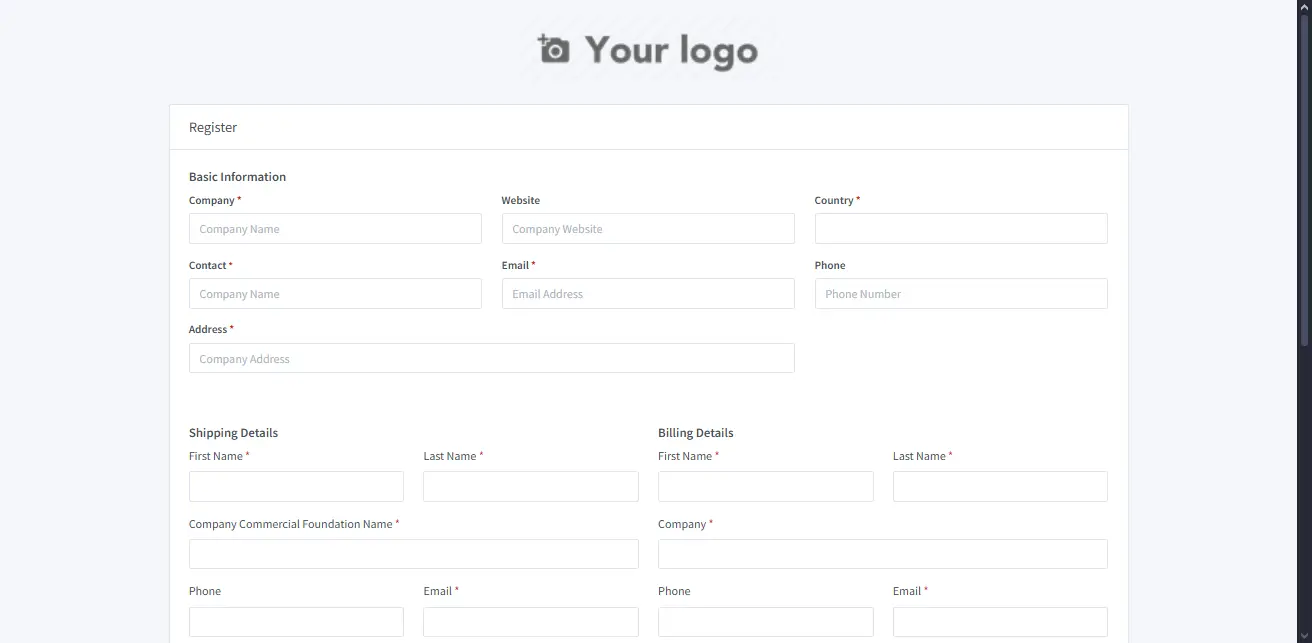
To use the same information for billing and shipping, check the box labeled 'Shipping Details same as Billing Details'.