Component
Users have the capability to add various lighting components, including LEDs, Drivers, Solar System devices, Accessory to the system.
LED
Create LED
Add new LED products with detailed specifications to manage your lighting inventory effectively.
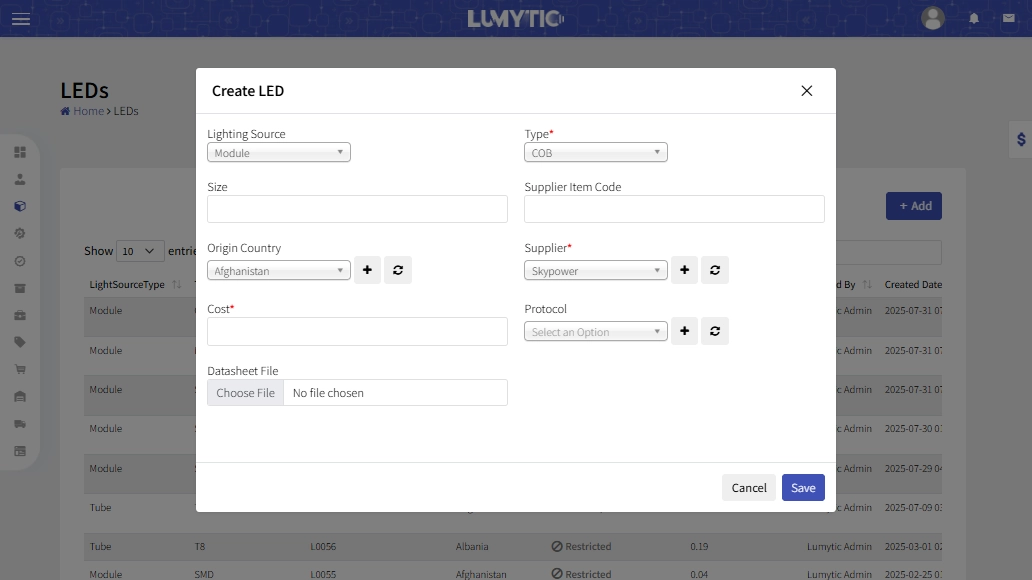
- From LEDs page, click Add.
- Select the appropriate Lighting Source and its type.
- Choose the Supplier from the dropdown list and provide the supplier's code, and Cost, then click Save
Edit LED
Easily modify your LED product details to ensure accuracy and consistency.
- From LEDs page, click Edit
- Make the necessary updates then click save.
Drivers
Create driver
Easily add new LED drivers with detailed specifications for accurate integration and control.
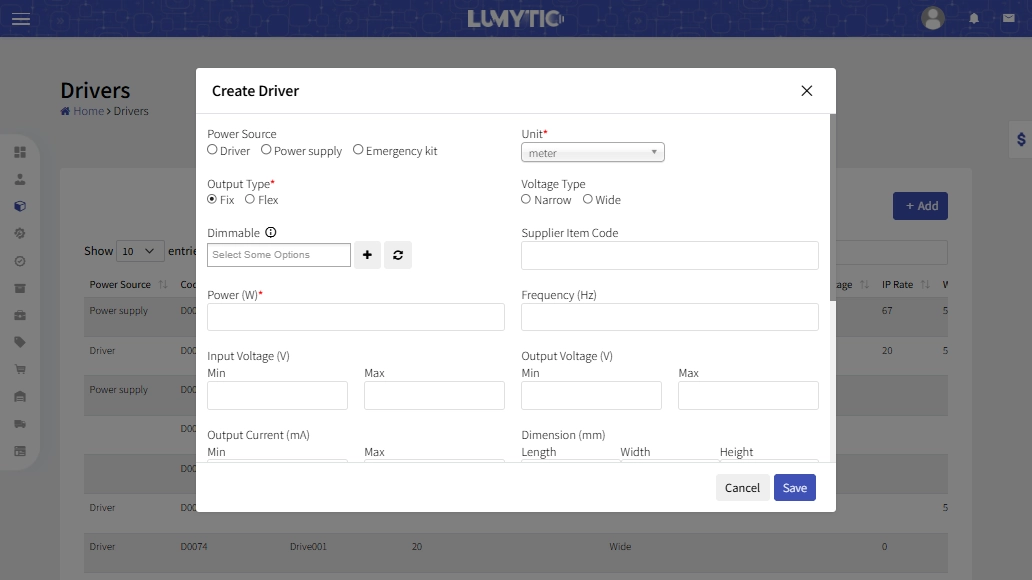
- From the Drivers page, click Add.
- Select the appropriate Power Source and Output Type.
- Enter the Power and Frequency value, choose the Supplier from the dropdown list
- Provide the Cost, then click Save
Edit driver
Update driver information to maintain compatibility and ensure optimal performance.
- From driver page, select the driver you want to update. Then, click Edit from the Actions button.
- Make the necessary updates then click save.
Solar Lighting Systems
Create Solar Lighting Systems
Quickly add new solar lighting systems with all essential features and technical data.
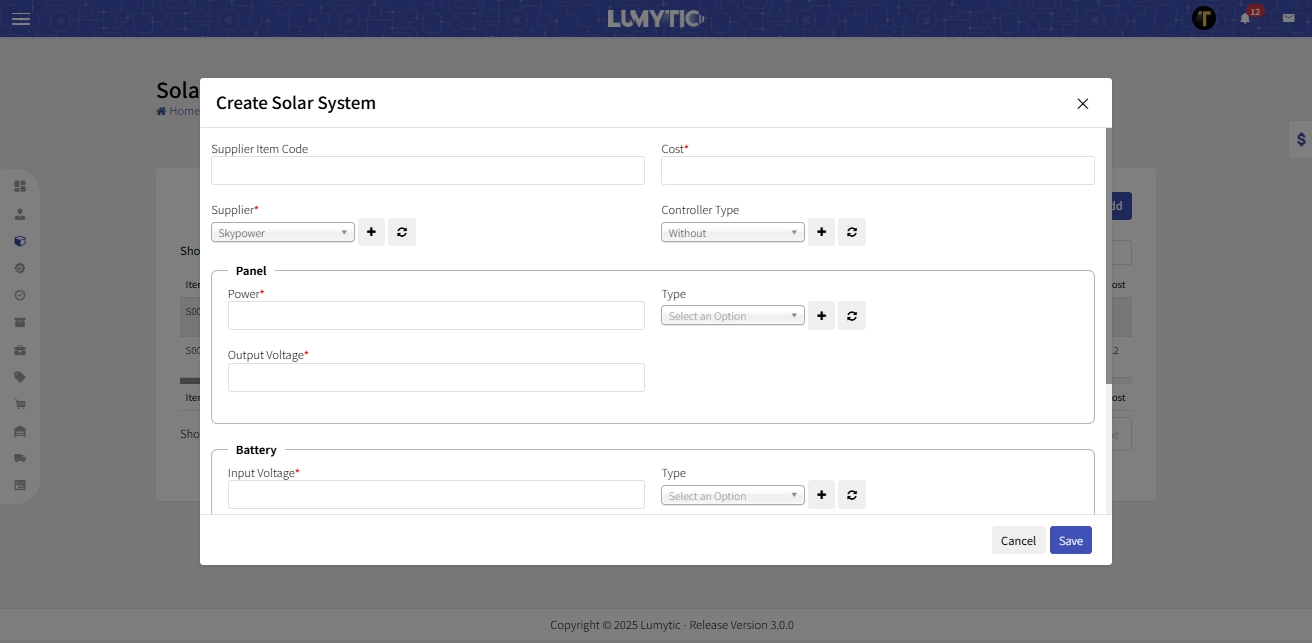
- From Solar Lighting Systems page, click Add.
- Enter the Cost and Supplier Item Code, select the Supplier from the dropdown list.
- Provide a detailed Panel such as Power, Type, and Output voltage.
- Enter Battery details including input voltage, then click Save
Edit Solar Lighting Systems
Refine existing solar lighting details to keep your product information current.
- From Solar Lighting Systems page, select the record you want to update. Then, click Edit from the Actions button.
- Make the necessary updates then click save.
Accessory
Use the Accessory section to manage products that complement or enhance primary items, such as add-ons or supplementary components. This allows you to keep track of additional items that support your main products.
Create Accessory
Effortlessly create new accessories, enhancing your product range and catalog.
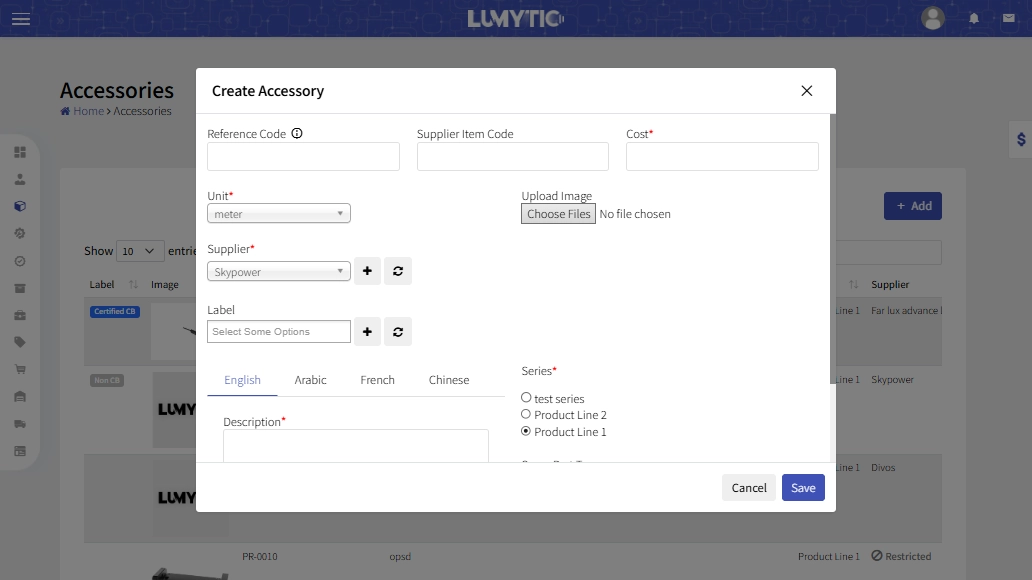
- From the accessory page, click Add.
- Enter the Cost and Reference Code, select the Supplier from the dropdown list, and provide A detailed Description for the item, then click Save
Edit Accessory
Make necessary edits to accessories for accurate and up-to-date information.
- From the accessory page, select the accessory you want to update. Then, click Edit from the Actions button
- Make the necessary updates then click save.